
Building a modern business website often forces small business owners and web design freelancers into a frustrating compromise. Traditional standalone page builders frequently add code bloat, slow down site performance, require steep learning curves, and lock your content into proprietary structures. Starting from scratch with empty default blocks, on the other hand, can leave non-technical creators struggling to achieve polished spacing, cohesive typography, and professional section layouts.
The solution is to use free WordPress block patterns and pre-built page templates. In this guide, we look at how the free Zentro Blocks plugin helps you craft responsive, accessible business websites directly inside the default block editor, without writing a single line of code.
The Problem: Building Business Sites Without Code or Bloat
Small business owners, solo freelancers, and agency designers share a common goal: publishing sleek, high-converting business websites efficiently. However, traditional site-building approaches introduce serious bottlenecks:
- Vendor lock-in and bloat: Proprietary drag-and-drop page builders often load heavy scripts on the front end. If you switch themes or uninstall the builder later, your pages can break into unreadable shortcode clutter. (We covered this in detail in our guide to creating a pricing table without a page builder.)
- Missing inner pages: Most pattern libraries focus almost entirely on flashy homepages, leaving you stranded when building critical pages like service sub-pages, pricing matrices, team directories, and case studies.
- Lorem ipsum friction: Many templates rely on generic placeholder text and abstract shapes, making it hard to picture how real commercial content will look once populated.
Native WordPress block patterns solve these challenges by arranging standard core blocks into pre-designed section layouts. Because they are built from native blocks, your content stays fully editable, lightweight, and portable.
Why Zentro Blocks Fits Small Businesses and Freelancers
Developed by WPBrand Digital, Zentro Blocks is a lightweight pattern library built specifically for the core WordPress block editor. Rather than replacing your theme or adding a complex visual builder, it plugs cleanly into your existing editor workflow. (New here? Read our introduction to Zentro Blocks first.)
| Zentro Blocks at a glance | What you get |
|---|---|
| Section patterns | 74 ready-made sections |
| Page templates | 18 complete page layouts |
| Interactive blocks | 19 native custom blocks |
| Front-end page-builder overhead | None |
| Where you access it | Zentro Patterns button in the editor toolbar |
| Admin controls | Zentro Blocks > My Suite and Zentro Blocks > Global Settings |
Here are the five core reasons Zentro Blocks is built for no-code site creators:
- Native blocks and zero lock-in: Everything you insert is built from standard WordPress blocks and lightweight Zentro elements. Switch themes or deactivate the plugin later, and your content and layouts stay intact.
- Complete inner pages included: Beyond homepages, you get inner page templates for About, Team, Services, Service Details with sticky sidebars, Pricing with billing tabs, Case Studies, and Portfolio filter grids.
- Dedicated industry packs: Sections are tailored to core business categories, including Digital Agencies, Healthcare Practices and Clinics, and Real Estate Agencies.
- 100% free, no account sign-up: Every pattern, page template, and block is free to use. No locked layouts, forced registrations, or API keys required.
- Lightweight and accessible architecture: The design library loads only when you open it inside the block editor. The editor script footprint is optimized to just 18 KB, and nothing page-builder-related is added to your front end. Interactive elements use proper ARIA roles and full keyboard accessibility.
Step-by-Step Setup Guide: Master the UI Controls
Setting up your business site with Zentro Blocks takes only a few minutes from your WordPress dashboard.
Step 1: Install and Activate the Plugin
- Go to Plugins > Add New Plugin in your WordPress dashboard.
- Type Zentro Blocks into the search bar.
- Click Install Now, then click Activate.
You can also download it directly from the Zentro Blocks page on WordPress.org.
Requirements: WordPress 6.5 or higher and PHP 7.4 or higher. Tested up to WordPress 7.1.4.
Step 2: Open the Design Library in the Editor
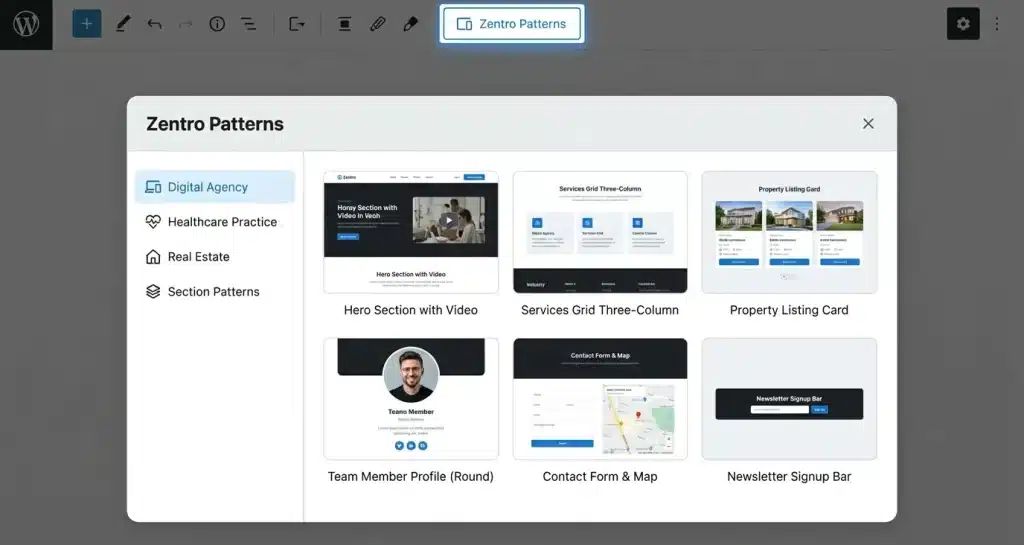
Once activated, open any page or post in the block editor and find the Zentro Patterns button in the top toolbar.
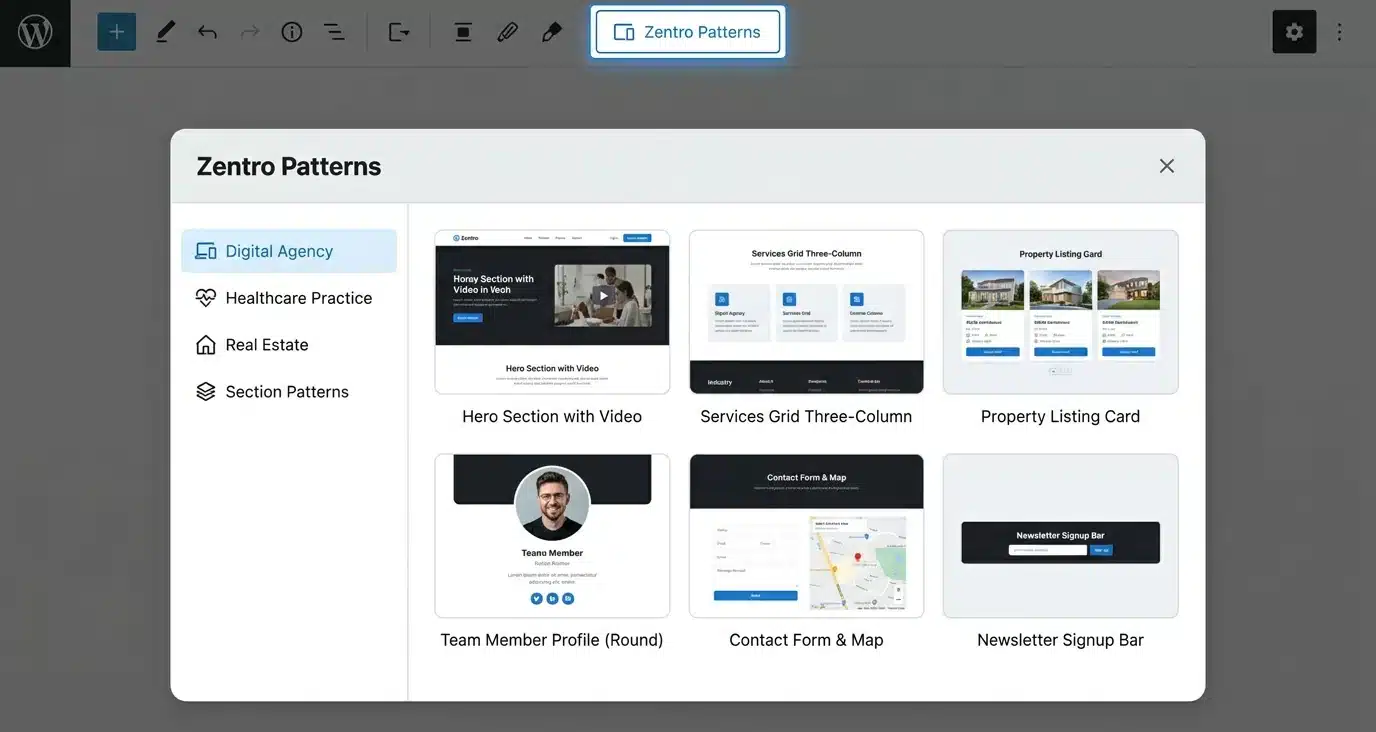
- Click Zentro Patterns in the top toolbar to open the modal.
- Switch between the Patterns tab (single sections such as hero headers, pricing tables, or testimonial grids) and the Page Templates tab (complete full-page layouts).
- Browse by the category sidebar or by industry pack.
- Hover over the layout you want and click Insert.
- If a block is selected, the design is inserted directly below it; on an empty page, it fills the page layout.
Step 3: Manage Active Blocks in “Zentro Blocks > My Suite”
To keep your block editor clean and fast, you can disable any individual block you don’t need.
- Go to Zentro Blocks > My Suite in your admin sidebar.
- Review the available interactive blocks (such as Accordion, Map, Popup, or Progress Tracker).
- Toggle off any block your site doesn’t use. Disabled blocks disappear from the block inserter instantly.
Step 4: Configure Site-Wide Styles in “Global Settings”
To keep your brand consistent across every inserted section:
- Go to Zentro Blocks > Global Settings.
- Set your primary Global Brand Color to match your business identity.
- Choose a typeface from Google Fonts, or leave it on the default Inherit setting so your active theme controls typography without loading external font stylesheets.
Layout Strategy: Combining Free WordPress Block Patterns, Templates and Interactive Blocks
Zentro Blocks ships 19 custom blocks alongside 74 block patterns and 18 page templates. A typical high-converting business page can be stacked like this:
| Page section | Zentro block to use |
|---|---|
| Hero section | Container block (flex/grid layout, mobile breakpoints) |
| Service details | Nested Tabs block (interactive multi-panel content) |
| Product showcase | Image Hotspots and Before/After comparison sliders |
| Milestones | Progress Trackers and chronological Timelines |
| Location and CTA | Advanced Map (OpenStreetMap) plus a Popup lead modal |
1. Responsive Container / Section Block
The Container / Section block is the structural foundation of your layouts. It offers flexbox and grid positioning with separate alignment, background overlay, and spacing controls for desktop, tablet, and mobile. Paired with a full-width block theme template (such as “Page No Title” in Twenty Twenty-Five), Container blocks stretch seamlessly across the whole viewport.
2. Nested Tabs Block
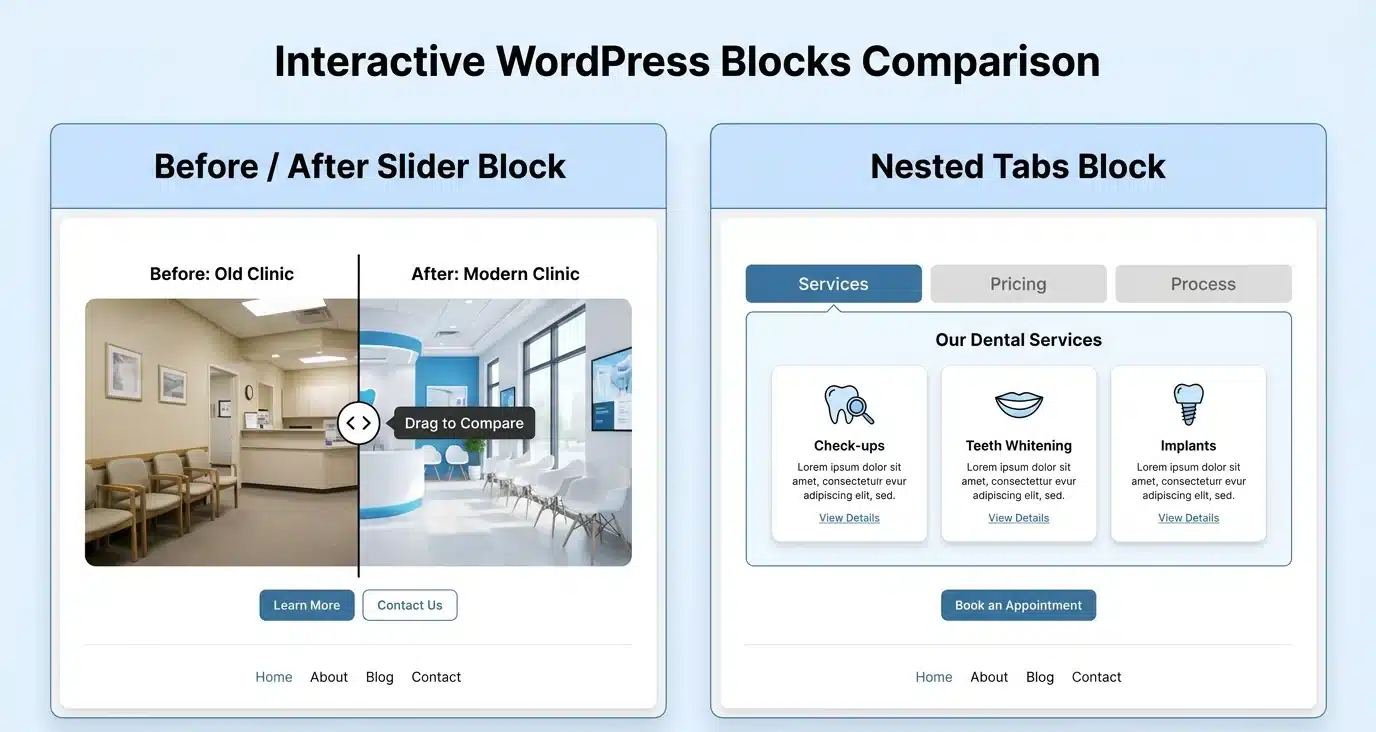
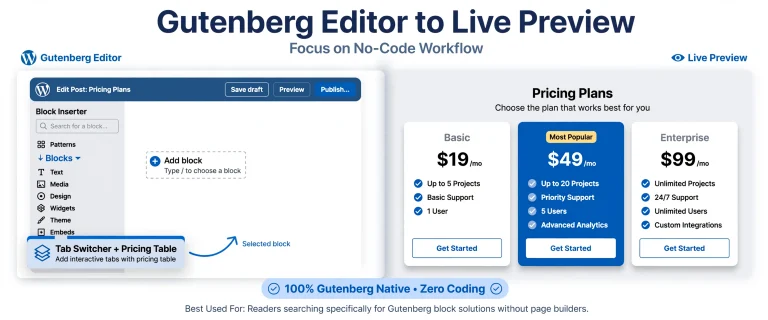
The Tabs block provides switchable navigation tabs with built-in ARIA roles and keyboard control. Each tab can hold any nested Gutenberg block, including multi-column text, galleries, feature grids, buttons, or pricing tables. That makes it ideal for organizing complex service offerings or monthly/yearly pricing comparisons.
3. Advanced Map Block
The Advanced Map block displays location maps with custom pins and responsive viewport lazy-loading. Use OpenStreetMap (Leaflet scripts load from unpkg.com and tiles from OpenStreetMap or CARTO, with no API key needed) or Google Maps (with your own Google Maps JavaScript API key).
4. Before / After Image Comparison Block
Perfect for dental practices, cosmetic clinics, renovation contractors, and design agencies, this block provides an interactive drag-to-reveal slider that shows visual transformations side by side.
5. Image Hotspot Block
Overlay interactive pins on a background image. When visitors hover over or click a pin, a tooltip pops up, which is ideal for product feature callouts, facility floor plans, or real estate property highlights.
6. Timeline & Roadmap Block
Show company history, project milestones, or service process steps in horizontal or vertical chronological layouts with dynamic scrolling. Learn more in Meet the Timeline Block.
7. Progress Tracker Block
Display key statistics, skill metrics, or campaign milestones. Linear progress bars and SVG circle loops animate when scrolled into view on mobile and desktop.
8. Popup / Modal Block
Capture leads or show announcements with a popup triggered by a button click. It includes full focus trapping, accessible ARIA dialog roles, and closes with the ESC key.
Customization Tips: Replacing Unsplash Demo Images and Styling
Zentro designs come pre-populated with realistic copy and high-quality placeholder photography loaded from Unsplash (images.unsplash.com).
Replace Third-Party Placeholder Images
When a visitor views a page with demo images, their browser requests those files directly from images.unsplash.com, sharing their IP address and browser headers with Unsplash. To remove those third-party requests and speed up loading:
- Click any inserted demo image in the block editor.
- Click Replace in the block toolbar and choose Open Media Library or Upload.
- Select your optimized brand photo. (Need help with file names and alt text? See how to improve WordPress content and image SEO.)
Note: Zentro Blocks lazy-loads demo images on the front end and assigns fetchpriority="high" to the first image to protect your Core Web Vitals during development.
Fine-Tune Colors and Typography
Because inserted patterns are made of standard WordPress blocks, you can adjust colors, padding, and typography for any block in the editor sidebar. For site-wide changes, update your preferences in Zentro Blocks > Global Settings.
4 Common Mistakes to Avoid When Building with Block Patterns
- Leaving Unsplash demo images live on production: Forgotten placeholders keep external requests to images.unsplash.com active. Replace demo assets with your own Media Library uploads before publishing.
- Leaving unused blocks enabled: Keeping all 19 custom blocks active when you only use three or four clutters the inserter. Visit Zentro Blocks > My Suite to turn off what you don’t need. For finer control over who sees what, try conditional block visibility.
- Overriding theme fonts unintentionally: Setting a custom Google Font in Global Settings loads stylesheets from fonts.googleapis.com. If your theme already handles typography, keep this on Inherit.
- Mixing heavy page builders with native patterns: Running a heavy page builder alongside Zentro Blocks defeats the purpose of lightweight Gutenberg editing. Stick to native block themes such as Twenty Twenty-Five for the best speed and portability.
Frequently Asked Questions
Is Zentro Blocks completely free to use?
Yes. Every block pattern, page template, and interactive block is unlocked as soon as you install it. There are no paid upgrades, account sign-ups, or hidden fees.
Will Zentro Blocks slow down my WordPress website?
No. The pattern library script loads inside the block editor only when you open it. On the front end, no proprietary page-builder layout scripts or unnecessary runtime overhead are added.
Do I lose my content if I deactivate Zentro Blocks?
No. Zentro Blocks inserts native WordPress blocks rather than shortcodes or a proprietary layout engine, so your text, images, and page structure remain intact, editable, and portable even if you switch themes or deactivate the plugin.
Can I use Zentro Blocks with any WordPress theme?
It works with any theme that supports the block editor and is optimized for native block themes like Twenty Twenty-Five. For seamless full-width sections, choose a page template without a title.
How do I replace demo images inside inserted patterns?
Click any placeholder image in the editor, choose Replace from the block toolbar, and upload an image or pick one from your Media Library.
Next Steps: Launch Your Site Today
Ready to build a clean, responsive, code-free business website with free WordPress block patterns?
- Open your dashboard and go to Plugins > Add New Plugin.
- Search for Zentro Blocks, click Install Now, then Activate.
- Open any page, click Zentro Patterns in the editor toolbar, and build your complete site in minutes.
Already tried Zentro Blocks on your site? Please leave a review on WordPress.org to support the development team.


Leave a Reply