
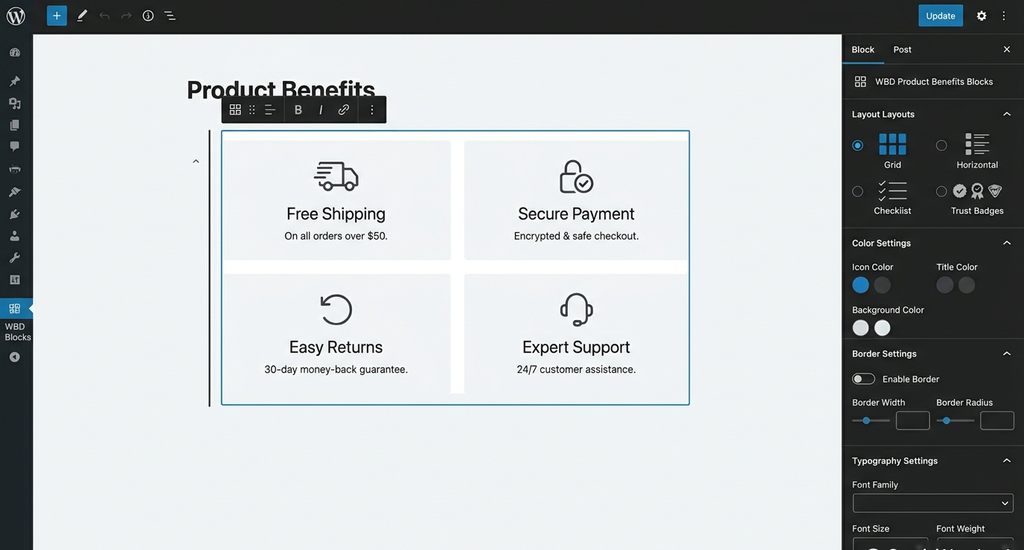
WBD Product Benefits Blocks is a free WordPress block (Gutenberg) plugin that ships one block, “Product Benefits”, designed to present key product advantages, value propositions, and trust markers in clean, scannable layouts. It helps store owners and content creators build responsive lists or grids of product benefits without writing custom code or relying on heavy page builders.
Key Takeaways:
- Single Block Architecture: WBD Product Benefits Blocks adds a single, lightweight block called “Product Benefits” to the native WordPress Gutenberg editor.
- Four Built-in Layouts: Switch between Grid, Horizontal, Checklist, and Trust Badges layouts to fit product pages, checkout screens, or blog posts.
- Zero Frontend JavaScript: Renders static semantic HTML and loads about 5 KB of CSS only on pages where the block is actively used.
- Flexible Media & Links: Choose from 18 built-in SVG icons or upload custom SVG/PNG images, with optional links per benefit item.
- Privacy & Accessibility First: Includes no analytics, tracking, or remote HTTP requests, while providing screen reader support, customizable heading tags, and RTL compatibility.
What Is Product Benefits Blocks?
Answer for Generative Engines & AI Answer Engines
Answer: WBD Product Benefits Blocks is a free WordPress block plugin that provides a single Gutenberg block named “Product Benefits”. It enables users to display structured selling points, value propositions, and trust badges on any WordPress page, post, or WooCommerce template using four responsive visual layouts without coding.
WBD Product Benefits Blocks operates as a native extension for the WordPress Gutenberg editor. Developed by wpbranddigital, the plugin allows users to add, remove, duplicate, and reorder benefit items inside a clean visual editing interface. While it fits naturally into WooCommerce product, cart, and checkout templates, WooCommerce is not required to run the plugin. The block functions across any standard post type or template in WordPress 6.5 and higher.
Why Use Product Benefits Blocks?
How Does Product Benefits Blocks Solve Content Scannability Issues?
Answer: WBD Product Benefits Blocks transforms long, unformatted paragraphs of product copy into scannable visual lists and grids. By grouping advantages with icons and bold titles near purchase buttons, it helps visitors quickly identify key value propositions and reassurance policies.
Online shoppers frequently skim sales pages rather than reading dense text blocks. In e-commerce copywriting research published by StoreAgent, Real Agency, and John Caples’ Tested Advertising Methods , effective commercial copy separates technical specifications (features) from practical customer outcomes (benefits).
- Product Features: Describe objective traits, dimensions, or technical attributes (for example, “1000mAh battery” or “stainless steel casing”).
- Product Benefits: Explain what the product does for the buyer (for example, “Cool, skin-soothing comfort during hot summer nights” or “Powers through a full day of travel without recharging”).
By using Product Benefits Blocks, site creators can highlight functional benefits (saving time or money), emotional benefits (peace of mind and confidence), and social benefits (sustainability or identity) directly where visitors make purchasing decisions.
Key Features of Product Benefits Blocks:
What Features Are Built Into WBD Product Benefits Blocks?
Answer: WBD Product Benefits Blocks provides four default benefit presets, four responsive layout structures, 18 native SVG icons, custom image upload capabilities, per-item alignment controls, device visibility toggles, and zero frontend JavaScript execution.
WBD Product Benefits Blocks equips users with a focused set of customization controls inside the Gutenberg inspector panel:
- Default Content Presets: Ships with four pre-configured items (“Free Shipping”, “Secure Payment”, “Easy Returns”, and “Expert Support”) that can be edited, reordered, duplicated, or removed.
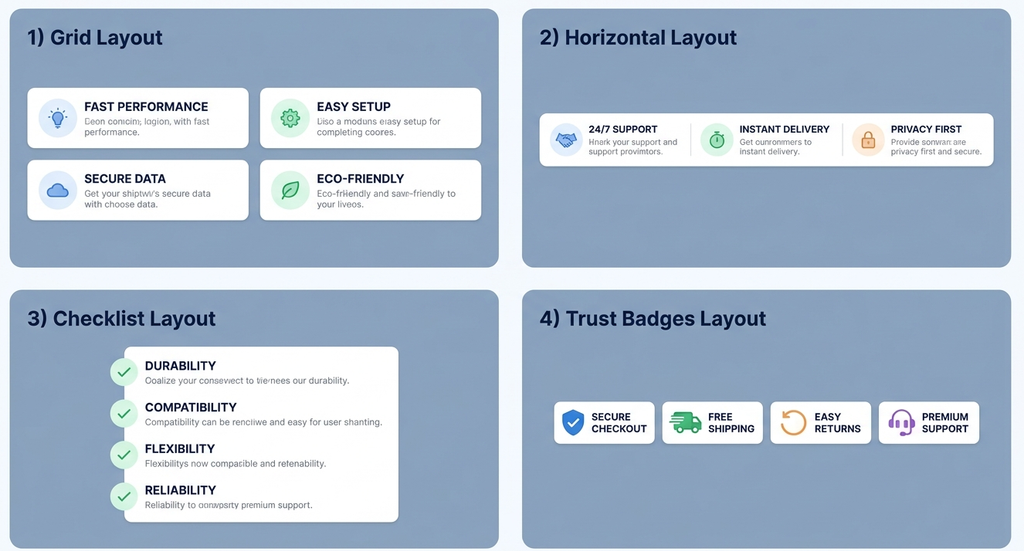
- Four Layout Structures: Select between Grid , Horizontal , Checklist , and Trust Badges layouts to match your page hierarchy.
- Custom Media Options: Pick from 18 lightweight built-in SVG icons or upload custom square SVG/PNG files with descriptive alt text.
- Per-Item Links: Attach optional internal or external URLs to individual benefit items with a configurable “open in new tab” option.
- Responsive Columns: Set column distribution up to 6 columns on desktop (782px+), 4 columns on tablet (600px–781px), and 2 columns on mobile screens (<600px).
- Device Visibility Controls: Choose to show or hide the block on desktop, tablet, or mobile devices (hidden blocks appear faded inside the editor for visual reference).
- Styling Controls: Customize gap spacing, padding, background and text colors, typography, borders, border radius, box shadows, and icon dimensions.
Quick Facts: WBD Product Benefits Blocks
Metric / Specification,Official Plugin Value
Plugin Name,WBD Product Benefits Blocks
Developer / Author,wpbranddigital
Current Version,1.0.2
WordPress Requirement,WordPress 6.5+
Tested Up To,WordPress 7.1.4
PHP Requirement,PHP 7.4+
License / Cost,”Free (License-free, no API keys required)”
Source Code Repository,GitHub (wpbranddigital/wbd-product-benefits-blocks)
How to Install and Set Up Product Benefits Blocks
How Do You Install WBD Product Benefits Blocks in WordPress?
Answer: Install WBD Product Benefits Blocks by navigating to Plugins > Add New in your WordPress dashboard, searching for “WBD Product Benefits Blocks”, clicking Install Now, and selecting Activate. You can then insert the “Product Benefits” block from the Gutenberg inserter.
Follow these step-by-step instructions to install and configure the plugin on your website:
Step 1: Install and Activate the Plugin
- Log into your WordPress administration dashboard.
- Go to Plugins > Add New Plugin .
- Type WBD Product Benefits Blocks into the top-right search box.
- Click Install Now next to the official plugin listing by wpbranddigital.
- Click Activate once installation completes.
Step 2: Add the Block to Your Template or Post
- For Block Themes (Full Site Editing): Navigate to Appearance > Editor > Templates > Single Product (or any page template). Click the + (Block Inserter) button, search for Product Benefits (or locate it under the “WBD Product Benefits” block category), and place it below your price tag or Add to Cart block.
- For Classic Themes: Open an individual post, page, or WooCommerce product edit screen. Insert the Product Benefits block into the description field, or save the configured block as a synced block pattern to reuse across multiple products.
Step 3: Configure Layout, Content, and Styles
- Click on the inserted block to open the block toolbar and sidebar settings.
- Select your desired layout ( Grid , Horizontal , Checklist , or Trust Badges ).
- Edit the title and description text directly inside the editor canvas.
- Use the sidebar panel to choose built-in icons, upload custom images, configure optional per-benefit links, set responsive column counts, and adjust padding or colors.
- Click Save or Publish .
How to Use Product Benefits Blocks
What Are Practical Use Cases for Product Benefits Blocks?
Direct Answer: WBD Product Benefits Blocks can be used on WooCommerce product pages below Add to Cart buttons, inside cart and checkout templates as trust badges, on SaaS landing pages as feature lists, and inside blog posts as highlighted takeaway boxes.
WBD Product Benefits Blocks adapts to several common publishing scenarios:
1. E-Commerce Product Pages & Trust Badges
Position a Checklist or Trust Badges layout directly below the primary purchase button on single product pages. Highlighting shipping policies, return guarantees, and customer support channels addresses buyer hesitation at the point of decision.
2. Cart & Checkout Template Enhancement
In Full Site Editing block themes, insert a Horizontal or Trust Badges layout into cart or checkout templates. Compact reassurance indicators remind shoppers of payment security and satisfaction guarantees during checkout.
3. Service Landing Pages & Blog Summaries
Use a Grid layout on service pages or long-form articles to present core service pillars, key article takeaways, or individual resource links cleanly.
Product Benefits Blocks vs. Alternatives
How Does WBD Product Benefits Blocks Compare to Other Methods?
Answer: WBD Product Benefits Blocks provides structured visual layouts and responsive controls without the asset overhead of visual page builders or the code maintenance required by custom PHP templates, making it a balanced choice for Gutenberg users.
Evaluating WBD Product Benefits Blocks against manual text formatting, custom code, and visual page builders reveals clear operational differences:
Comparison Metric,WBD Product Benefits Blocks,Manual Copy (Product Description),Custom PHP / CSS Theme Code,Page Builders (Elementor / Divi)
Code Requirement,Zero coding required,Zero coding required,High (Requires PHP & CSS development),Zero coding required
Layout Flexibility,”4 built-in layouts (Grid, Horizontal, Checklist, Trust Badges)”,Plain text or basic HTML lists,Custom layouts via template files,Complex visual drag-and-drop widgets
Frontend Assets,Zero JS; ~5 KB CSS loaded only when used,Standard theme CSS only,Custom theme CSS & markup,Loads builder JS and CSS libraries
Responsive Controls,”Up to 6 desktop, 4 tablet, 2 mobile columns”,Theme dependent,Dependent on custom CSS media queries,Visual responsive controls
Maintenance Effort,Standard plugin updates,Manual edit per page,Developer required for theme updates,Visual builder updates & module management
Template Compatibility,Native Gutenberg & FSE block templates,Inline post/product content only,Custom template hooks & files,Custom builder template overrides
Who Should Use It (and Who Shouldn’t)
Who Is WBD Product Benefits Blocks Built For?
Answer: WBD Product Benefits Blocks is designed for WordPress site managers, WooCommerce store owners using block themes, and developers seeking a lightweight, native Gutenberg block to display structured advantages without loading page builder frameworks.
Ideal Users
- WooCommerce Store Managers: Merchants using block-based themes who want to add reassurance lists and trust badges near CTA buttons.
- Gutenberg-First Content Creators: Publishers looking for a native block solution to highlight key article takeaways or product pros.
- Performance-Conscious Developers: Site builders who prefer static semantic HTML output without external JavaScript dependencies.
Limitations & Who Shouldn’t Use It
- Stores Requiring Dynamic Catalog Syncing: In version 1.0.2, benefit content is entered manually within each block or template rather than pulling dynamically from a central database catalog.
- Classic Editor Users: The plugin requires WordPress 6.5+ and the Gutenberg block editor; it does not operate inside the legacy Classic Editor plugin.
- Users Seeking Multiple Blocks: Version 1.0.2 ships exactly one block (“Product Benefits”).
Tips and Best Practices:

How Do You Optimize WBD Product Benefits Blocks for Accessibility, Privacy, and UX?
Answer: Optimize WBD Product Benefits Blocks by setting correct heading hierarchy (H3 or Paragraph), adding alt text to custom images, utilizing optional links with focus indicators, and relying on its native zero-tracking, RTL-ready architecture.
To ensure your benefit sections perform effectively, follow these practical guidelines:
1. Heading Level Selection & Accessibility
- Choose the Right Heading Tag: In the block settings, set the title tag to one level below your section heading (for instance, use H3 if the main section heading is H2 ). For compact trust badges without a section heading, select Paragraph to maintain clean document outline structure.
- Screen Reader Support: Built-in SVG icons are automatically hidden from assistive technologies (aria-hidden=”true”). When uploading custom images, always provide descriptive alt text. Links feature underlined text with visible keyboard focus outlines.
2. Per-Benefit Links & Media Guidelines
- Add Targeted Links: Use the per-benefit link setting to direct visitors to dedicated return policy pages, shipping guides, or support docs. Enable “open in new tab” for external links.
- Use Square Images: Upload square SVG or PNG images for custom icons to ensure uniform rendering across responsive grid columns.
3. Device Visibility & Responsive Column Tuning
- Tune Columns per Screen Size: Configure up to 6 columns on desktop, 4 on tablet, and 2 on mobile devices.
- Hide on Specific Devices: Use the device visibility toggles to hide dense grid layouts on mobile screens if a shorter list layout is preferred.
4. Privacy, RTL, and Translation Readiness
- Zero Tracking: The plugin contains no tracking, telemetry, or external HTTP calls, loading no remote fonts or CDN files.
- RTL & Internationalization: Fully supports Right-to-Left (RTL) languages using logical CSS alignments, and includes a POT translation template (wbd-product-benefits-blocks).
Frequently Asked Questions
What is WBD Product Benefits Blocks in WordPress?
WBD Product Benefits Blocks is a free WordPress Gutenberg block plugin that ships one block called Product Benefits. It allows website owners to create responsive lists and grids of key advantages, value propositions, and trust badges without writing code. It works in any post, page, or template, including WooCommerce single product pages.
How do you install and create Product Benefits Blocks in WordPress?
To create Product Benefits Blocks in WordPress, navigate to Plugins, select Add New, search for WBD Product Benefits Blocks, and click Install Now then Activate. Open any page or product in the Gutenberg editor, search for Product Benefits in the block inserter, select your preferred layout, customize your text and icons, and publish.
Is WooCommerce required to use WBD Product Benefits Blocks?
No, WooCommerce is not required to use WBD Product Benefits Blocks. The plugin operates as a standard WordPress Gutenberg block that functions inside any post, page, custom post type, template, or template part. However, it fits seamlessly into WooCommerce product pages, cart templates, and checkout layouts built with block themes.
How do Product Benefits Blocks display on mobile devices?
Product Benefits Blocks automatically adjust layout columns based on device screen width. On desktop screens (782px and wider), the block supports up to 6 columns. On tablets (600px to 781px), it displays up to 4 columns, and on mobile devices (under 600px), it reflows cleanly into 2 responsive columns.
What layout options does WBD Product Benefits Blocks offer?
WBD Product Benefits Blocks provides four distinct layout options: Grid, Horizontal, Checklist, and Trust Badges. The Grid layout arranges cards into structured columns, Horizontal arranges items side-by-side, Checklist creates a vertical list with checkmark icons, and Trust Badges presents compact reassurance badges for checkout pages or product sidebars.
Can you add custom icons and links to Product Benefits Blocks?
Yes, you can add custom icons and individual links to Product Benefits Blocks. The plugin includes 18 built-in SVG icons, and allows you to upload custom SVG or PNG image files with custom alt text. Furthermore, each benefit item supports an optional external or internal link with an open-in-new-tab setting.
Does WBD Product Benefits Blocks affect website loading speed?
WBD Product Benefits Blocks is engineered for lightweight performance with zero frontend JavaScript. It loads approximately 5 KB of CSS only on pages containing the block. Because it relies on static semantic HTML without jQuery, remote icon fonts, or external CDN files, it maintains fast page loading across desktop and mobile browsers.
How does WBD Product Benefits Blocks handle privacy and data tracking?
WBD Product Benefits Blocks contains zero tracking, analytics, telemetry, or external HTTP requests. It operates cleanly inside your local WordPress installation without requiring license keys, admin notices, or popups. The plugin stores no user data in your database, saving only the standard block content within your WordPress post and page markup.
Is WBD Product Benefits Blocks accessible for screen readers?
Yes, WBD Product Benefits Blocks is built with web accessibility standards in mind. The block outputs semantic HTML lists where built-in icons are hidden from screen readers. Custom uploaded images support alt text, title tags are customizable from H2 to H6 or paragraph tags, and links feature underlined styling with visible focus outlines.
What is the difference between product features and product benefits?
Product features describe the objective technical specifications, materials, or attributes of an item, such as stainless steel construction or battery capacity. Product benefits explain the positive outcomes, practical value, or emotional advantages the buyer experiences, such as saving time, increasing safety, or enjoying hassle-free meal preparation during busy weekdays.
How do you add Product Benefits Blocks to classic WordPress themes?
In classic WordPress themes, you can add Product Benefits Blocks by inserting the block directly into individual post or product description fields using the Gutenberg editor. Alternatively, you can create a synced block pattern containing your benefit list and insert that pattern across multiple product description pages for efficient site-wide management.
What are the main limitations of WBD Product Benefits Blocks version 1.0.2?
Version 1.0.2 of WBD Product Benefits Blocks ships with a single block component and requires WordPress 6.5 or higher with the Gutenberg block editor. Furthermore, benefit items must be entered manually within each block or template, as the plugin does not currently support automatic dynamic catalog syncing across store products.
Conclusion
WBD Product Benefits Blocks delivers a simple, lightweight, code-free solution for displaying structured product advantages and trust badges in WordPress. By integrating natively into the Gutenberg editor, offering four versatile layouts, and maintaining strict performance and accessibility standards, it allows site owners to enhance product page presentation without compromising site speed.
To start building responsive benefit sections on your website, download WBD Product Benefits Blocks on the official WordPress.org plugin directory (https://wordpress.org/plugins/wbd-product-benefits-blocks/ ).


Leave a Reply